Why it matters
Single trips tell you little. Totals over weeks and months answer real questions: how far you drive in a year, which day is busiest, whether that new commute adds up.
Day by day.
Daily Stats shows a calendar shaded by how much you drove, and any day opens to its trips.
- Calendar shaded from less to more
- Distance, duration, trips, averages, longest drive and top speed per day
- Week starts on the day you choose
Weeks, months, years.
Period stats sum everything up and show how it’s spread out.
- Weekly, monthly, yearly or any custom date range
- Activity heatmap and distance by day
- Day of week and peak driving hours
- All routes of the period on one map
- Share a stats card for any period
Goals along the way.
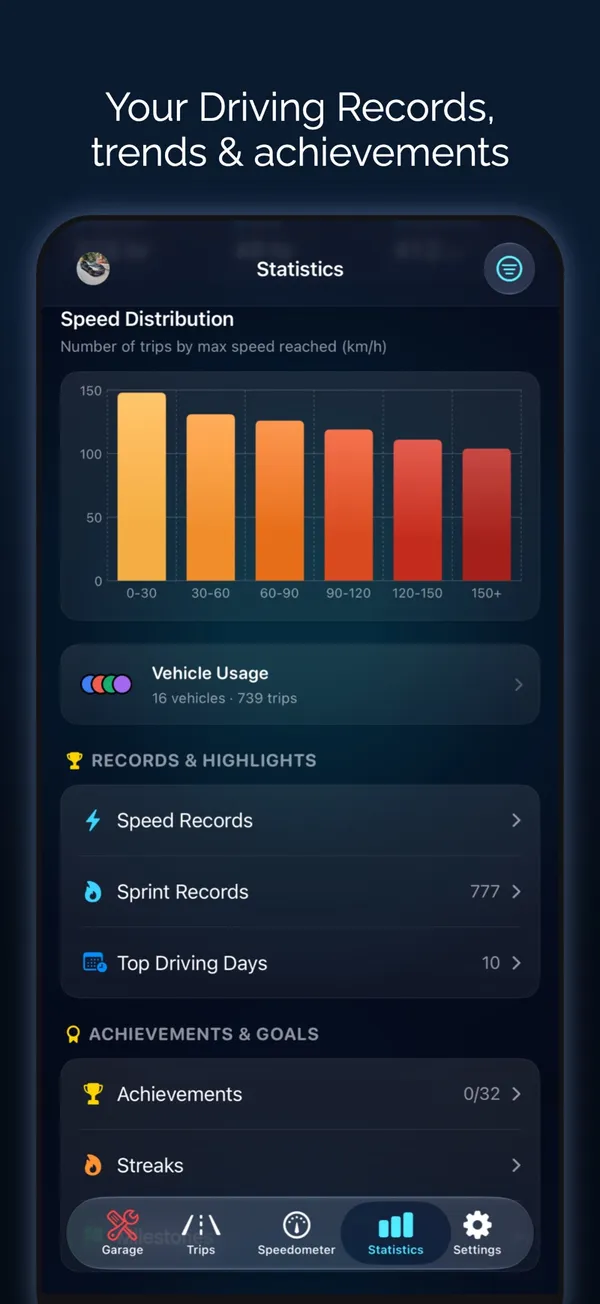
Milestones, streaks and achievements mark how far you’ve come.
- Distance milestones from your first 100 m to the distance to the Moon
- Streak of consecutive days with a trip
- 32 achievements in four tiers
- Trends over time for distance, speed, elevation and G-force
Questions about Driving statistics
How can I see how many miles I drove this year?
Open Statistics → Yearly Stats in Odo. It totals the distance, time and trips for the year, with a breakdown by day and a map of every route. Custom Date Range covers any other period.
Can I see my driving for one vehicle?
Trips can be filtered by vehicle in the Trips tab, and each trip is assigned to a vehicle automatically by OBD2 adapter, CarPlay or car Bluetooth, or by hand.
Do excluded trips count in my stats?
No. A trip you exclude with More → Exclude from Stats stays in your log but isn’t counted in totals.
Last updated