New in Odo 5.0. The Gauge layout is part of Odo Premium. Engine readings need a connected OBD2 adapter.
Why it matters
Speed shown as a row of text takes a moment to read. A gauge is quicker: a large number, a scale and a colored arc tell you where you are in a glance. Odo draws that gauge on the car’s own screen and lets you shape it to your car and your taste.
44 looks, ready in one tap.
A few of the ready-made looks. Apply one, then change anything you like.
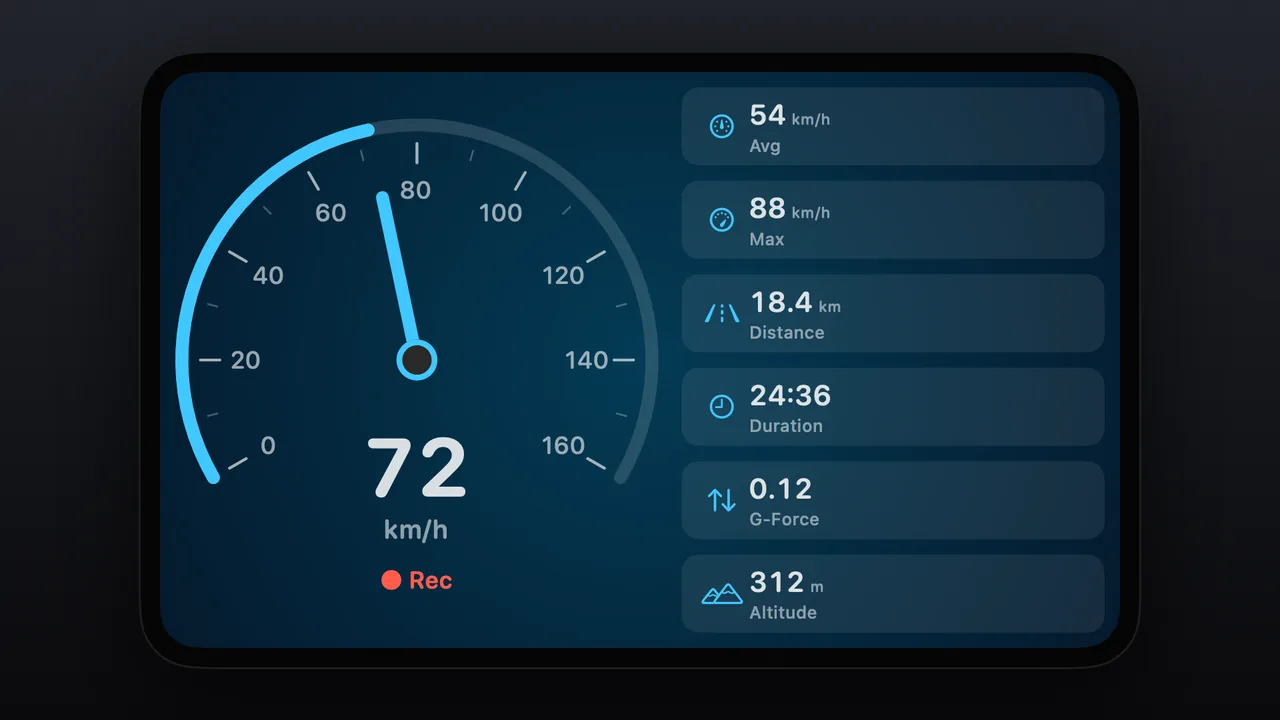
Classic A needle gauge on the left with stats on the right. 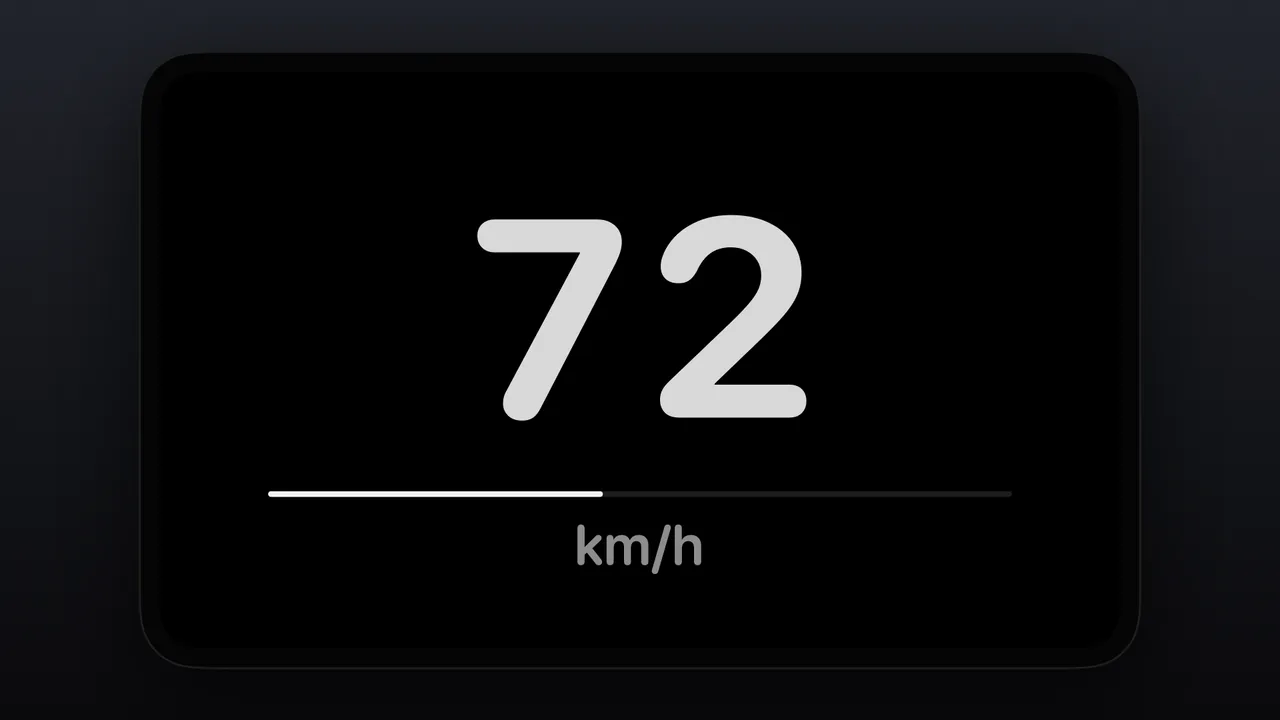
Minimal Only the number, large, on black. 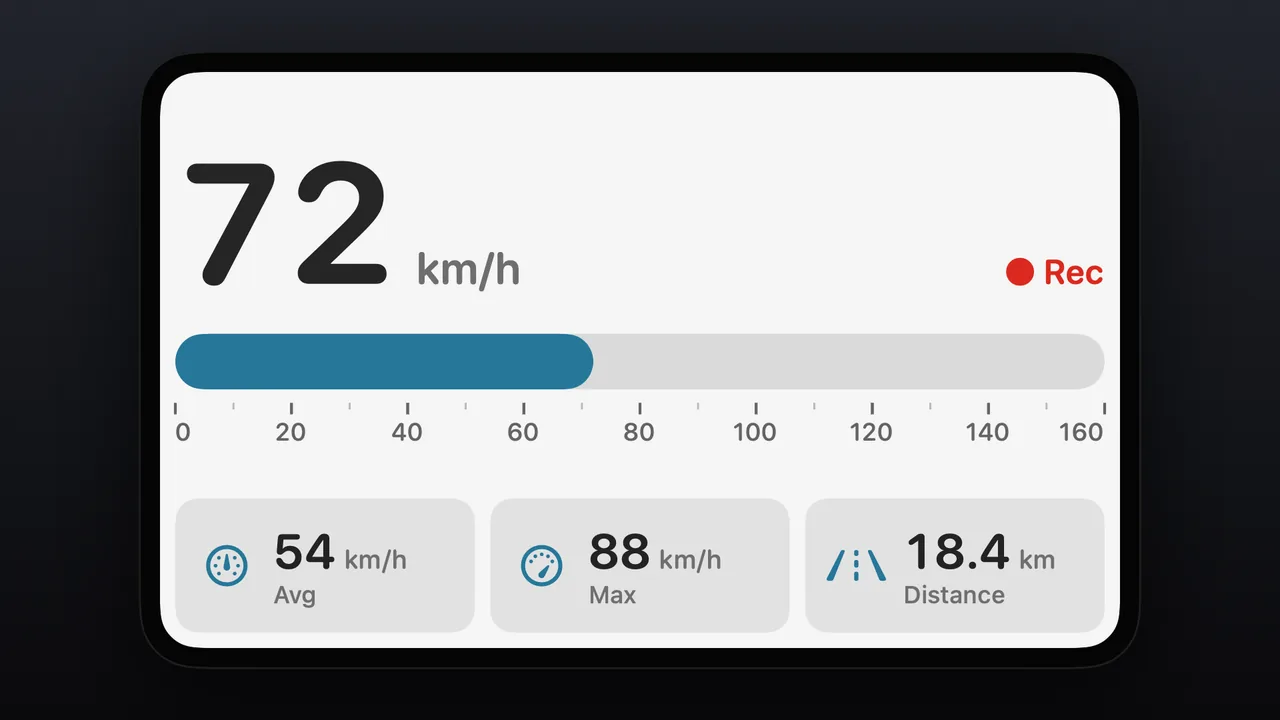
Daylight A light background with a bar gauge on top and tiles in a row below. 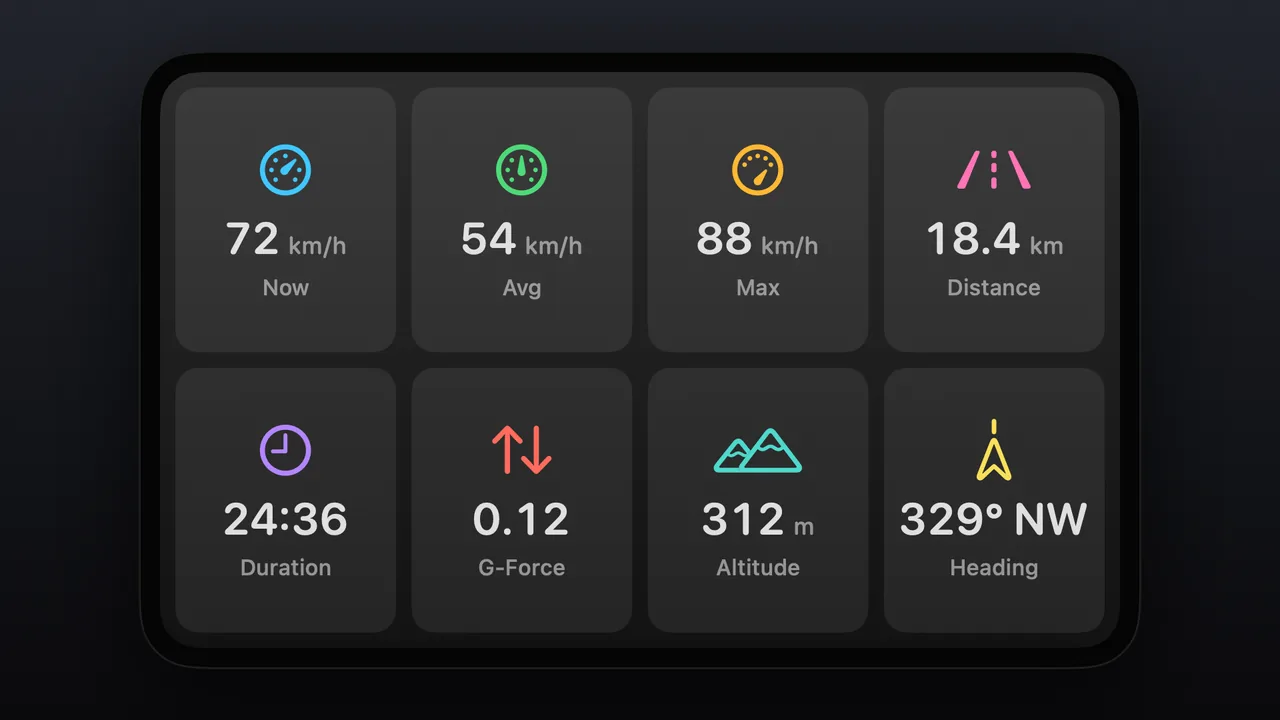
Dashboard Tiles only: eight stats in a grid. 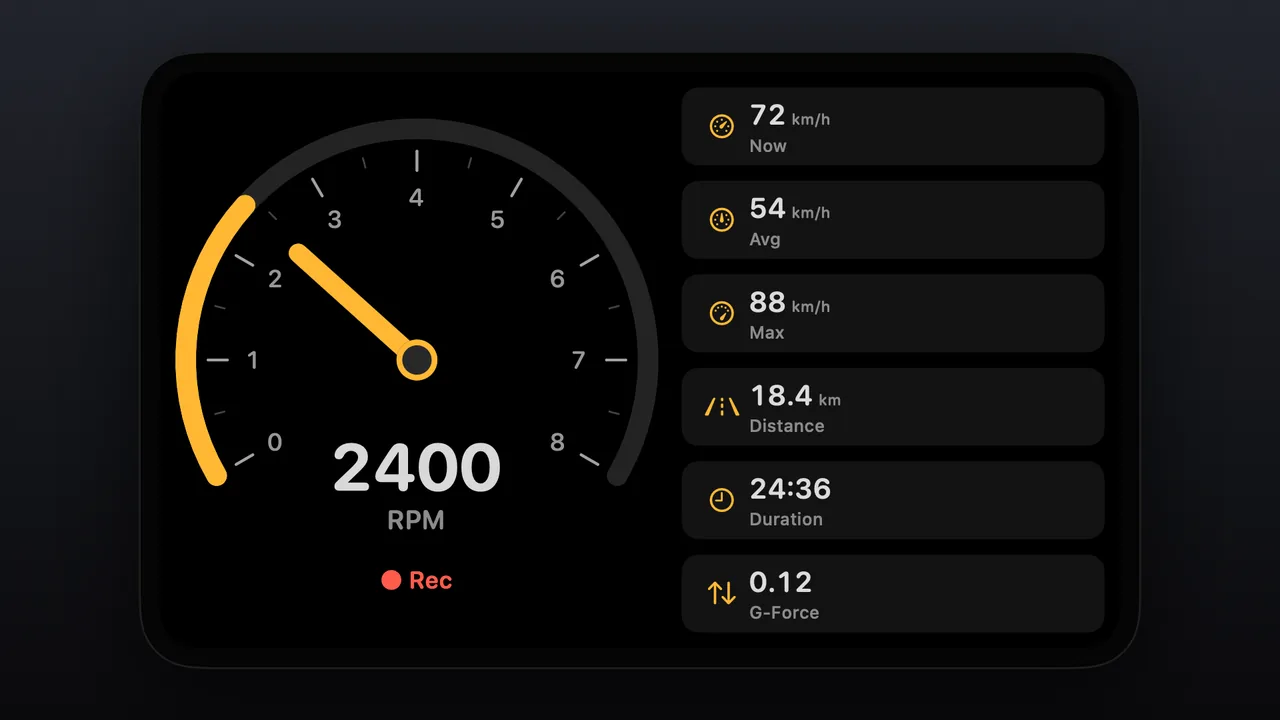
RPM Engine RPM on the gauge, with speed as the first tile. 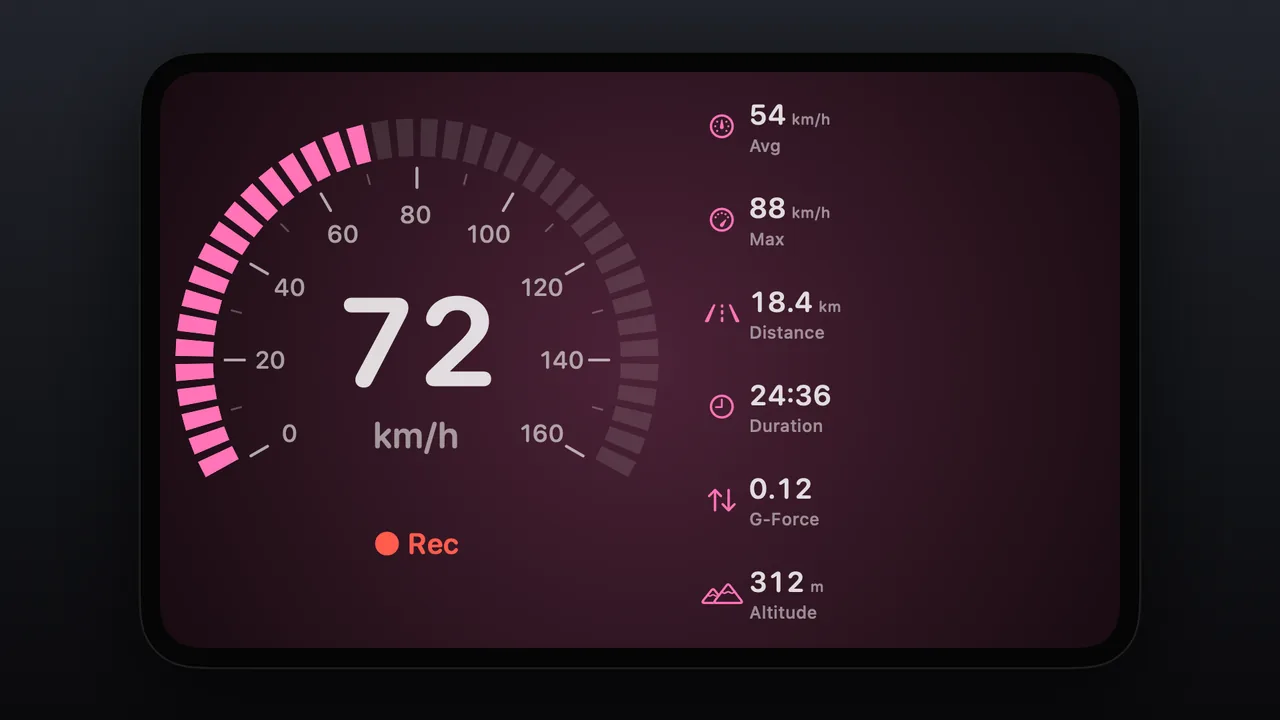
Neon A pink segmented gauge and stats with no tile backgrounds. 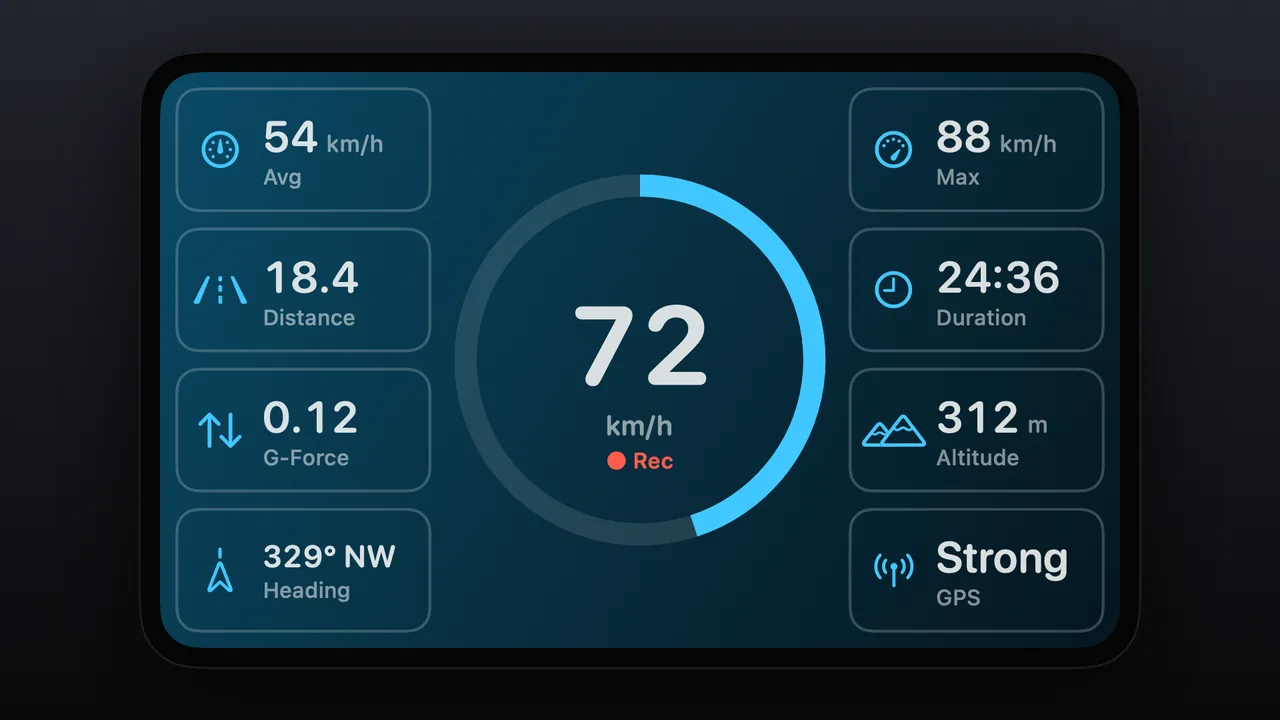
Ocean A blue ring gauge in the center with outlined tiles. 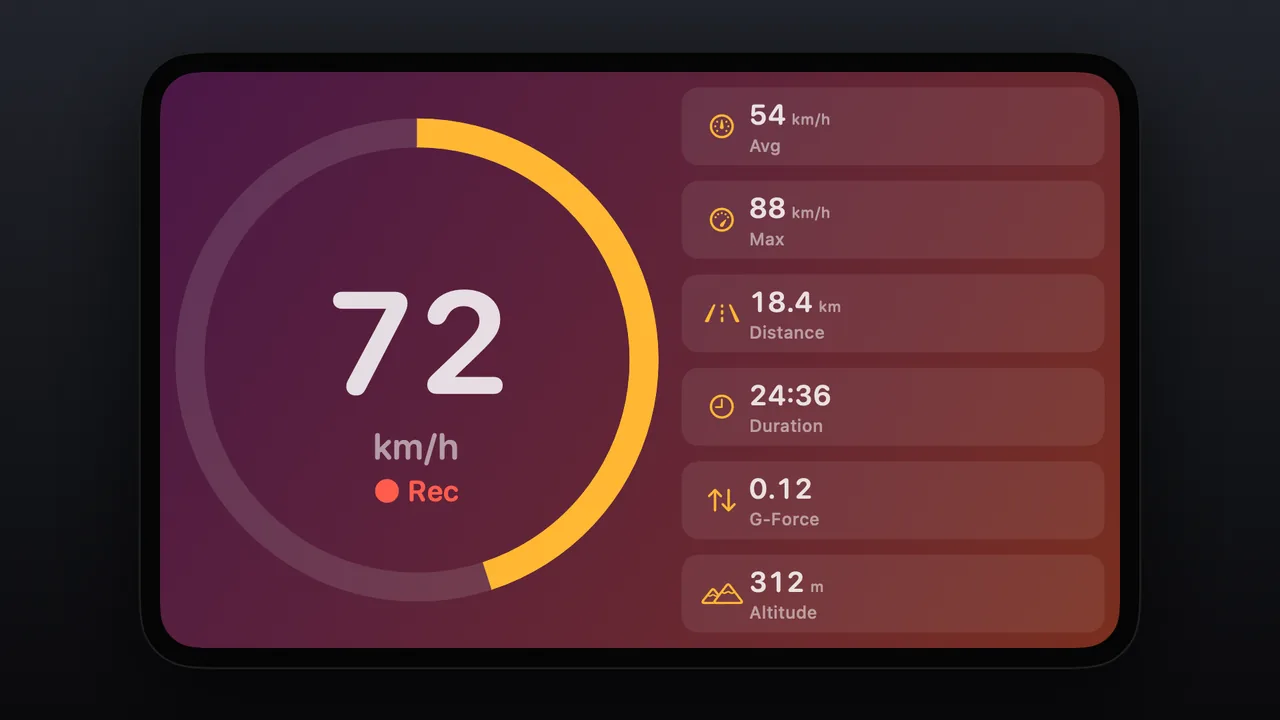
Sunset A ring gauge on a purple-to-orange background. 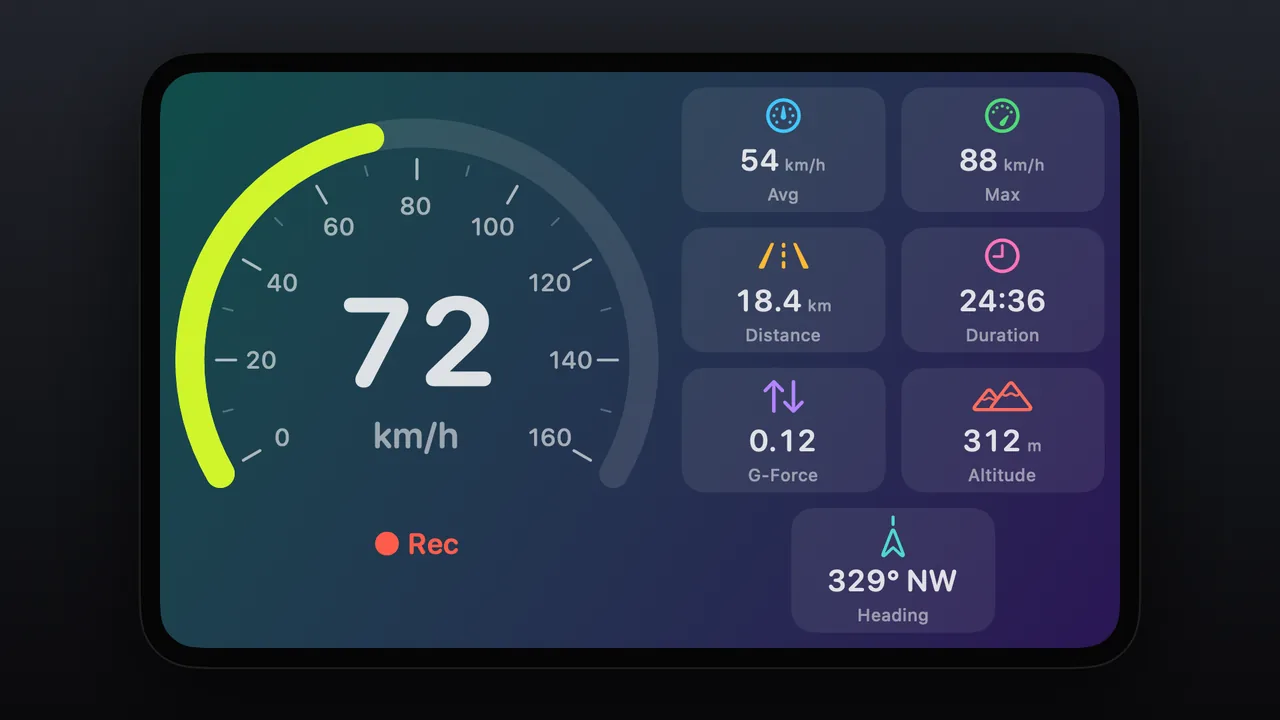
Aurora A lime arc with colorful icons on a green-to-violet background. 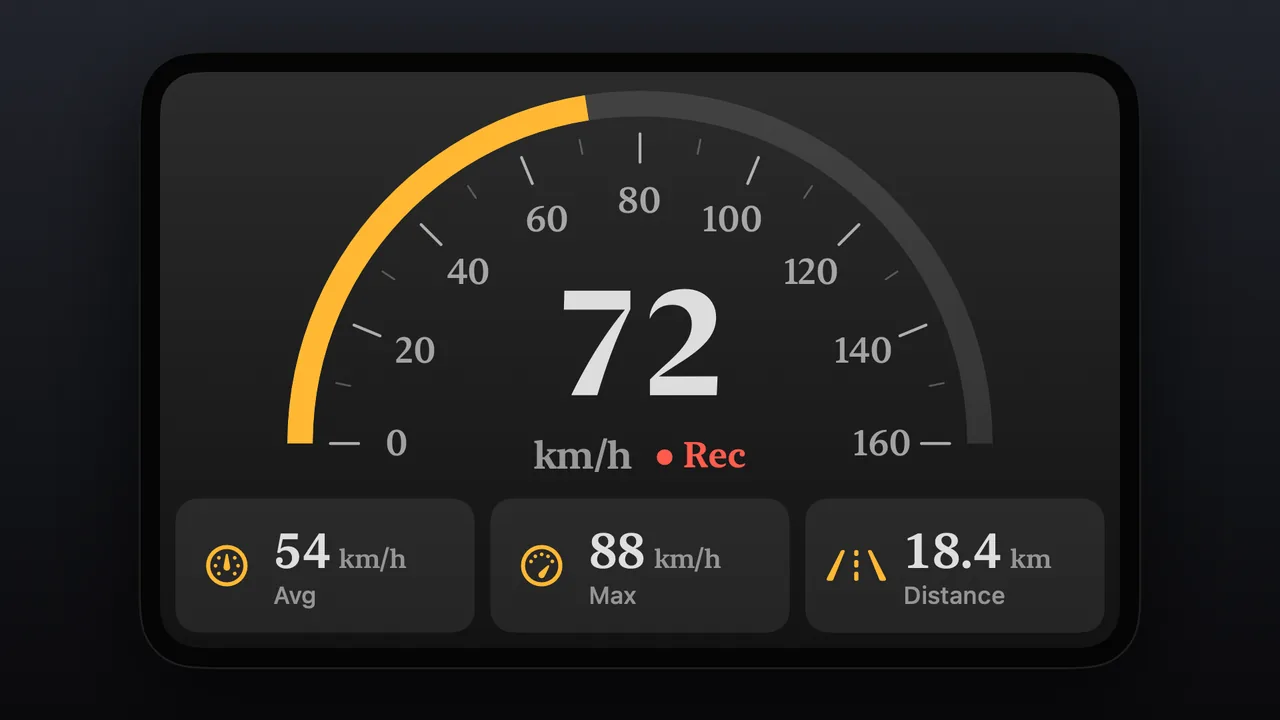
Retro A half dial on top with serif numbers. 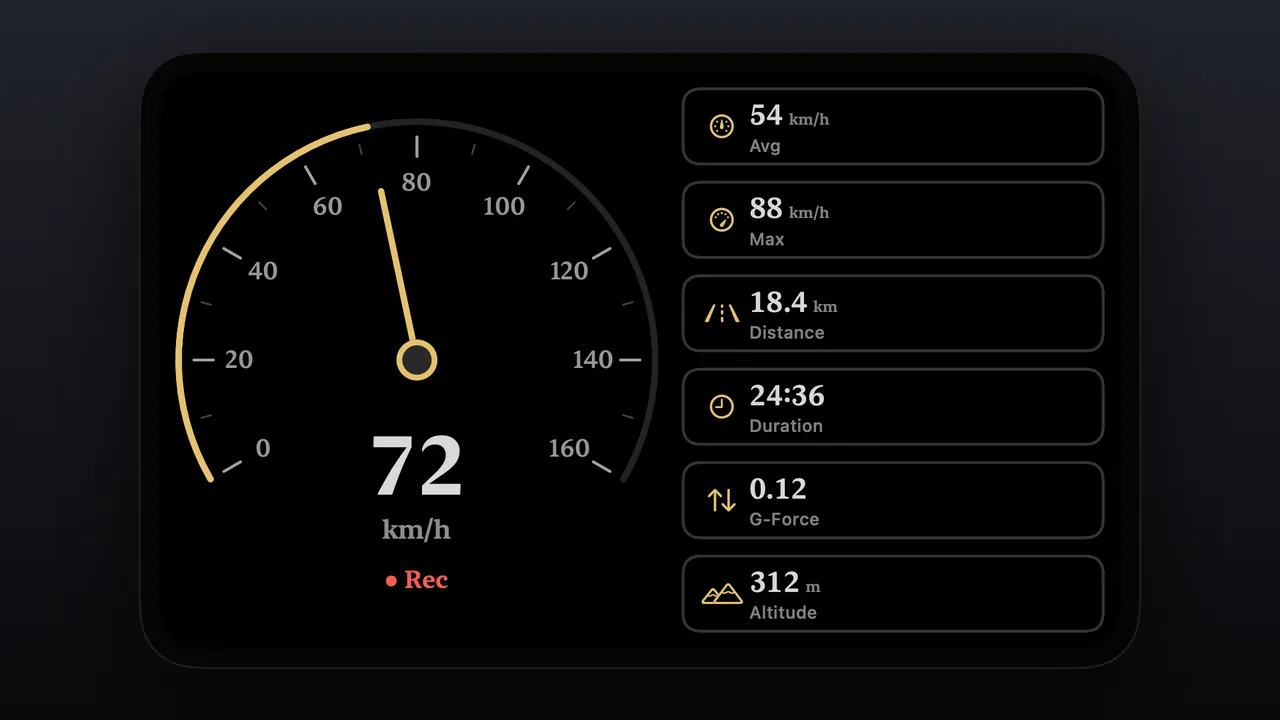
Gold A thin gold needle on black with outlined tiles. 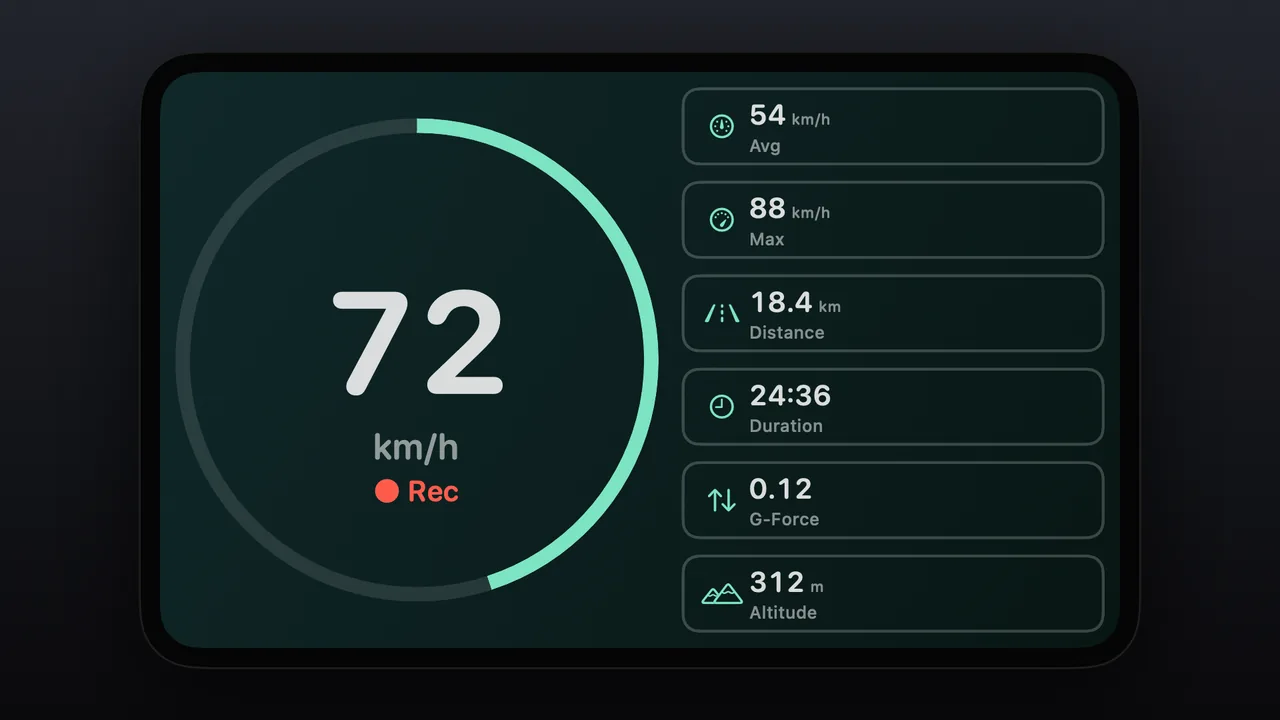
Mint A thin mint ring on dark green with outlined tiles.
See it move.
Default look in motion Classic look in motion RPM look in motion
Gauge looks shown with sample data.
Ten gauge styles.
Choose how the gauge is drawn, from a sweeping arc to a plain number. Nine styles are made for the car’s screen, and App Gauges brings over the design you already use on your iPhone.
- Arc, Needle, Half Dial, Segments, Ring, Bar, Blocks, Tape and Digital
- App Gauges: the same design as your iPhone (Same as Phone, the default), or any other non-animated design from the phone app’s collection
- When your iPhone is in Map or HUD mode, or its design is animated or a navigation readout, CarPlay shows the Arc instead
- Line weight: Thin, Medium or Bold
- Number style: Rounded, Standard, Monospaced or Serif
- Top of the scale: the same as your phone’s gauge, or a fixed value
Six ways to arrange the screen.
Decide where the gauge sits and how much room the stats get. Buttons on the car’s screen switch the arrangement and the gauge style.
- Gauge Left or Gauge Right, with stat tiles on the other side
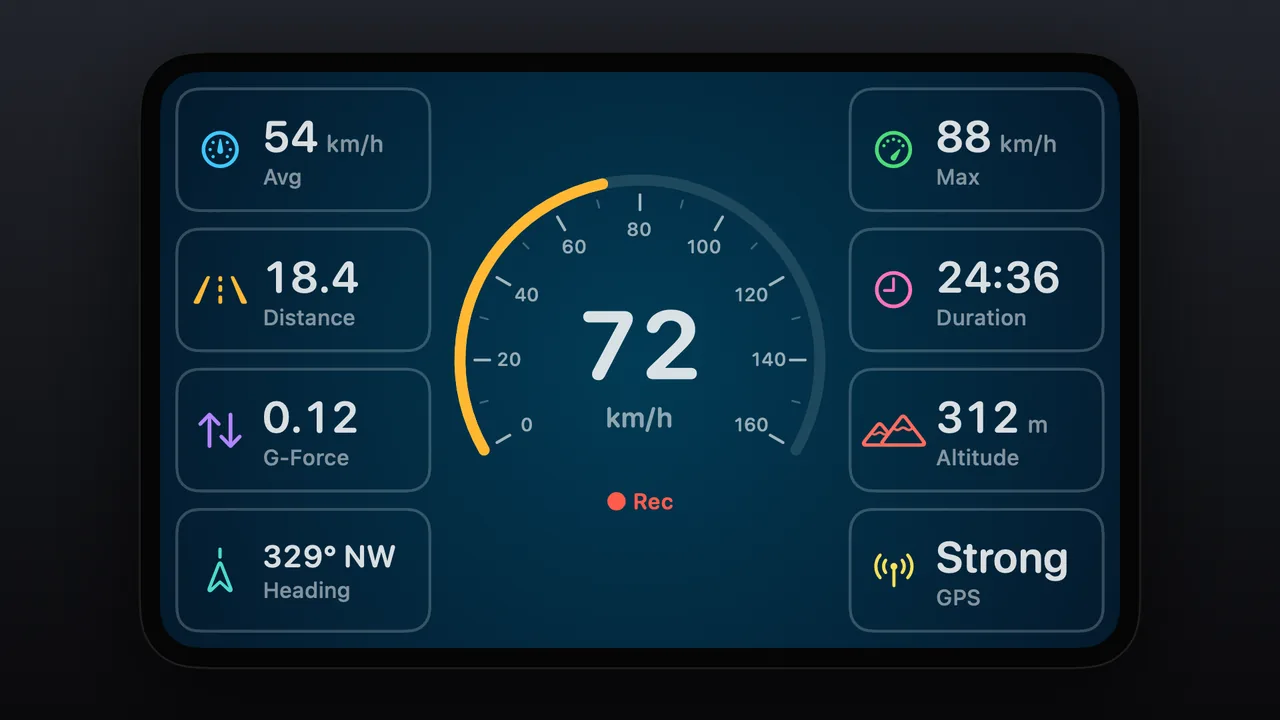
- Gauge Centered, with stat tiles on both sides
- Gauge on Top, with tiles in a row below
- Gauge Only, with no tiles
- Tiles Only, a grid of stats
Make it yours.
Start from one of 44 ready-made looks, applied in one tap, then change anything you like. A live preview in the phone’s settings shows what CarPlay will show.
- 44 looks, including Default, Classic, Minimal, Daylight, Cockpit, Dashboard, Neon, Ocean, Midnight, Forest, Sunset, Aurora, Retro, Paper, Mono, Onyx, Snow, Glass, Gold, Mint, Coral, Lavender, Teal, RPM and Fuel
- 16 gauge colors, or a custom color
- 18 backgrounds or a custom color, including Same as App, the default, which matches the phone app’s theme
- Icon colors: Colorful, Same as Gauge, White or Custom
- Tiles: Filled, Outlined or No Background, with a choice of icon position, labels on or off, and up to 8 tiles
- Theme: Automatic (light by day, dark by night, following the car), Match Phone, Light or Dark. Colored backgrounds keep their own look
More than speed.
The gauge shows your speed by default. With an OBD2 adapter connected it can show an engine reading instead, and your speed stays on screen as a tile.
- Gauge Shows: Speed, RPM, Engine Load, Throttle, Coolant Temp, Oil Temp, Fuel Level, Battery voltage or G-Force
- Engine readings need a connected OBD2 adapter; without one the gauge shows speed
- Stat tiles you choose and put in order: Avg, Max, Distance, Duration, G-Force, Altitude, Heading, GPS signal and OBD2 readings
- Avg, Max, Distance and Duration appear while a trip is recording
Built for the drive.
The layout sizes itself to your car’s display, from compact to ultra-wide, and the screen is redrawn only when a value changes.
- Refresh rate: 10, 5, 2 or 1 times a second, with 5 as the balanced default
- An optional Smooth Motion setting
- The speed limit mark on the gauge and the red over-limit color follow Odo’s Speed Limit Alert
- Buttons on the car’s screen open the map or the other tabs
- Works with wired and wireless CarPlay
How to set it up
- 1
Choose the Gauge layout
In Odo on your iPhone, open Settings › CarPlay › Layout Style and choose Gauge. You can also pick it on CarPlay in More › Live tab layout.
- 2
Customize the gauge
Tap Customize Gauge. Apply a ready-made look, or choose the gauge style, arrangement, colors and tiles yourself. The live preview shows what CarPlay will show.
- 3
Choose what the gauge shows
Leave Gauge Shows on Speed, or pick a reading such as RPM if you use an OBD2 adapter. Then choose the stat tiles and their order.
- 4
Connect to CarPlay
Plug in your iPhone, or connect wirelessly if your car supports it, and open Odo on the car’s screen. The Live tab shows your gauge.
Questions about CarPlay speedometer gauge
Is there a speedometer gauge for Apple CarPlay?
Yes. Odo’s Gauge layout draws a real speed gauge on the CarPlay screen, in 10 styles such as Arc, Needle, Ring and Digital, with the stats you choose beside it. The Gauge layout is part of Odo Premium.
What is the best CarPlay speedometer app?
It depends on what you need, so check a few things: speed you can read at a glance, real gauge styles, customization, engine data, wired and wireless CarPlay, and trip recording that keeps working with other navigation apps. Odo covers each one: a Gauge layout with 10 styles and 44 looks, your own colors and stat tiles, OBD2 readings such as RPM with an adapter, wired or wireless CarPlay, and trip recording that continues in the background when another navigation app is on screen.
How do I get a digital speedometer on CarPlay?
In Odo on your iPhone, open Settings › CarPlay › Layout Style and choose Gauge, then tap Customize Gauge and pick the Digital style. For the gauge by itself with no tiles, choose the Gauge Only arrangement.
Can I customize my CarPlay dashboard with Odo?
You can customize Odo’s own screen on CarPlay. In Customize Gauge, apply one of 44 looks in one tap, or set the gauge style, arrangement, gauge color, background, icon colors, tile style, number of tiles, line weight and number style. A live preview on your iPhone shows what CarPlay will show.
Can I show RPM on CarPlay?
Yes, with an OBD2 adapter connected. Set Gauge Shows to RPM, Engine Load, Throttle, Coolant Temp, Oil Temp, Fuel Level or Battery voltage, and your speed stays on screen as a tile. Without an adapter the gauge shows speed.
Can CarPlay show the same speedometer design as my iPhone?
Yes. The App Gauges style shows the gauge design you use on your iPhone, or any other non-animated design from the phone app’s collection. If your iPhone is in Map or HUD mode, or its design is animated or a navigation readout, CarPlay shows the Arc instead.
Does the CarPlay gauge have a light mode for daytime?
Yes. Set Theme to Automatic and the gauge is light by day and dark by night, following the car. You can also choose Match Phone, Light or Dark. Colored backgrounds keep their own look.
Does the gauge show the speed limit?
It shows the limit from Odo’s Speed Limit Alert. The gauge marks that limit on the scale and turns red when you are over it.
Can I change the gauge from the car’s screen?
Yes. Buttons on the car’s screen switch the arrangement and the gauge style, open the map, or open the other tabs. You can also pick the Gauge layout on CarPlay in More › Live tab layout.
How often does the CarPlay gauge update?
You choose the refresh rate: 10, 5, 2 or 1 times a second, with 5 as the balanced default, plus a Smooth Motion option. The screen is redrawn only when a value changes.
Does the CarPlay speedometer gauge work with wireless CarPlay?
Yes. Odo on CarPlay works wired or wireless, and the Gauge layout sizes itself to the car’s display, from compact to ultra-wide.
Is the CarPlay speedometer gauge free?
Odo is free to download. The Gauge layout on CarPlay is part of Odo Premium.
Does Odo support wired and wireless CarPlay?
Yes, both. If your car supports either wired (USB) or wireless CarPlay, Odo works the same way. Full answer
Can I use Odo for navigation, or alongside another navigation app on CarPlay?
Both. Odo has its own turn-by-turn navigation, and if you prefer another navigation app, Odo keeps recording your trip in the background. Full answer
Which cars work with Odo on CarPlay?
Any car or aftermarket head unit that supports Apple CarPlay, from nearly every major manufacturer. Full answer
Works well with
CarPlay driving dashboard
Speed, trip controls, places, OBD2 data and records in five customizable tabs.
Learn moreOBD2 on CarPlay
Live engine data, trouble codes and engine stats on your car’s screen.
Learn moreGauge designs
50+ speedometer designs, from classic dials and F1 to synthwave, trains, boats and aircraft.
Learn moreLast updated